
Feedback
AI Ad Video Example
Loading...
MiniMax H3 to Video
A single prompt is enough: MiniMax H3 to Video turns it into 2K video where voices, effects and music are produced during the render — no separate audio step.
All Tools
Discover our comprehensive AI-powered animation toolkit
MiniMax H3
MiniMax H3 AI Video Generator
Seedance 2.5
The Future of AI Video Is Here.
Seedance 2.0
The Future of AI Video Is Here.
Kling 3.0
Next-Gen AI Video Generator
Grok Video Generator
Create Videos from Text or Images with AI
MiniMax H3 video generator
MiniMax H3 AI Video Generator
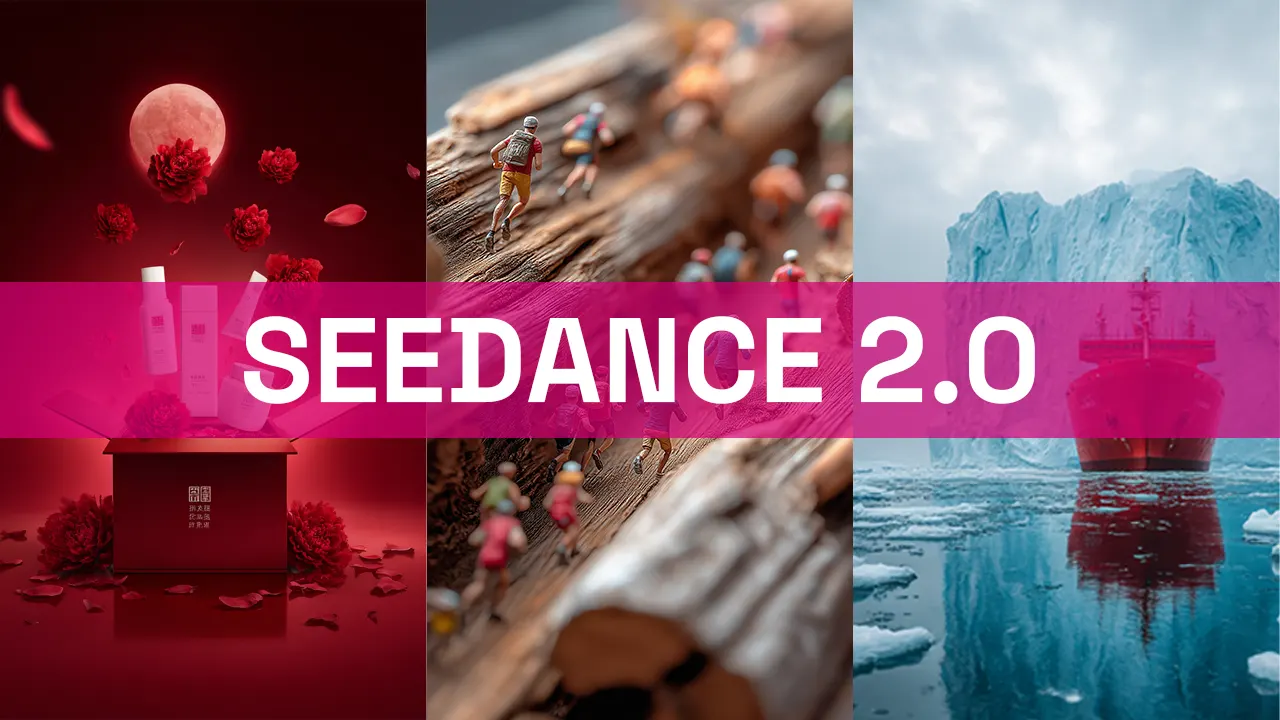
Seedance 2.0
The Future of AI Video Is Here.

3D Science Video
Create 3D science videos easily
What MiniMax H3 to Video Brings to Text-to-Video
MiniMax H3 to Video is the MiniMax H3 model, also released as Hailuo 3.0, and it carries a written scene straight to 2K footage with the audio produced during generation. Because sound is decided while the shot is being rendered rather than layered on afterward, the effects you name and the timing you give them shape the outcome. Speech is part of the render itself, reference material keeps characters and locations steady, and multi-shot beats resolve in the order you wrote them.
- From Prompt to Finished FootageWrite the scene, and moving footage comes back with voices, effects and music already produced during that same generation — nothing left to add later.
- Speech That Stays in FrameBuilt for vertical drama shot in close coverage and reverse angles — each line is voiced while the take is rendered, so no separate recording session is needed.
- References That Hold the LookBring up to 9 images, 3 clips and 3 audio files into a single run, each with a role you assign, so a face, a place, a movement or a voice stays anchored.
Getting Started With MiniMax H3 to Video
Three steps take you from a blank canvas to a finished video with MiniMax H3 to Video on Morphic's endless visual workspace.
Core Capabilities of MiniMax H3 to Video
Audio generated during the render, speech performed in frame, references that hold continuity and multi-shot beats that land on cue — these are the pieces MiniMax H3 to Video assembles to turn a written shot into a finished 2K sequence.
Video and Audio in a Single Render
Naming an effect and choosing where it lands changes the output — write the scene and frames arrive with their audio already produced inside the render.
Lines Performed On Screen
Close coverage and shot-reverse-shot cutting for vertical drama — the line is voiced as the take is generated, so performance and delivery arrive together instead of being matched later.
Fifteen Reference Slots in One Run
Combine 9 images, 3 clips and 3 audio files, each given a job — MiniMax H3 to Video draws faces, locations, motions and voices from sources you lock in advance.
Several Shots Inside One Generation
Break the clip into beats and multiple shots come back from a single generation — title cards, interface walkthroughs and product reveals follow the order you set out.
Swap Models, Compare Takes
Renders land in minutes, and you can place MiniMax H3 to Video results beside output from other models on the Morphic Canvas before committing to one.
2K Delivery, Ready to Use
Output arrives at 2K with the audio already in place, so titles, interface walkthroughs and product reveals can move straight into your edit.
MiniMax H3 to Video: Frequently Asked Questions
Answers to the questions people ask most often about creating video from text with MiniMax H3 to Video.
What exactly is MiniMax H3 to Video?
It is MiniMax's H3 model, also released as Hailuo 3.0, offered here as a text-to-video tool. From a written scene it produces 2K video in which the audio was generated during the same run.
Is the audio genuinely generated?
Yes. MiniMax H3 to Video creates the audio while the shot is being rendered. The effects you name and the point at which you place them shape the result, and speech is voiced in frame rather than recorded separately.
What makes the first render come out well?
Cover subject, action, camera, light and the sound you want, then add timings across the clip — MiniMax H3 to Video lands closest to your intent when the beats are marked out in advance.
Can I supply reference images, clips or audio?
You can. Up to 9 images, 3 clips and 3 audio files go into a single run with MiniMax H3 to Video, and each one is assigned a role so a face, location, motion or voice comes from a fixed source.
Will it handle more than one shot?
It will. Divide the clip into beats and several shots come back from one generation with MiniMax H3 to Video, so title sequences, interface walkthroughs and product reveals follow the order you wrote.
How can I compare it against other models?
Open the Morphic canvas, render in minutes, switch between models, and place MiniMax H3 to Video results next to Kling 3.0, Veo 3.1, Seedance 2.5 and Vidu Q3 before you pick a final cut.
Start Creating With MiniMax H3 to Video
Write a scene and let MiniMax H3 to Video carry it to 2K, with speech, effects and music already part of the output. Lines in frame, references holding continuity — all on an endless visual canvas.